What it is
QolSync AI Scheduling lets an organization's Owner or Admin create, update and cancel Zoom meetings and webinars from a QolSync AI event, for any eligible host in their Zoom account.
It is separate from the QolSync AI app used for live translation inside Zoom, which keeps working on its own.
Available on QolSync AI Webinar 100, Webinar 300 and Unlimited plans.
Before you start
In QolSync AI
- An organization on the Webinar 100, Webinar 300 or Unlimited plan.
- You are that organization's Owner or Admin.
In Zoom
- You are the Zoom account's Owner or Admin.
- At least one other licensed user to choose as the host.
- For webinars and panelists, a host with a webinar license.
Add the app
- Sign in to QolSync AI as an organization Owner or Admin.
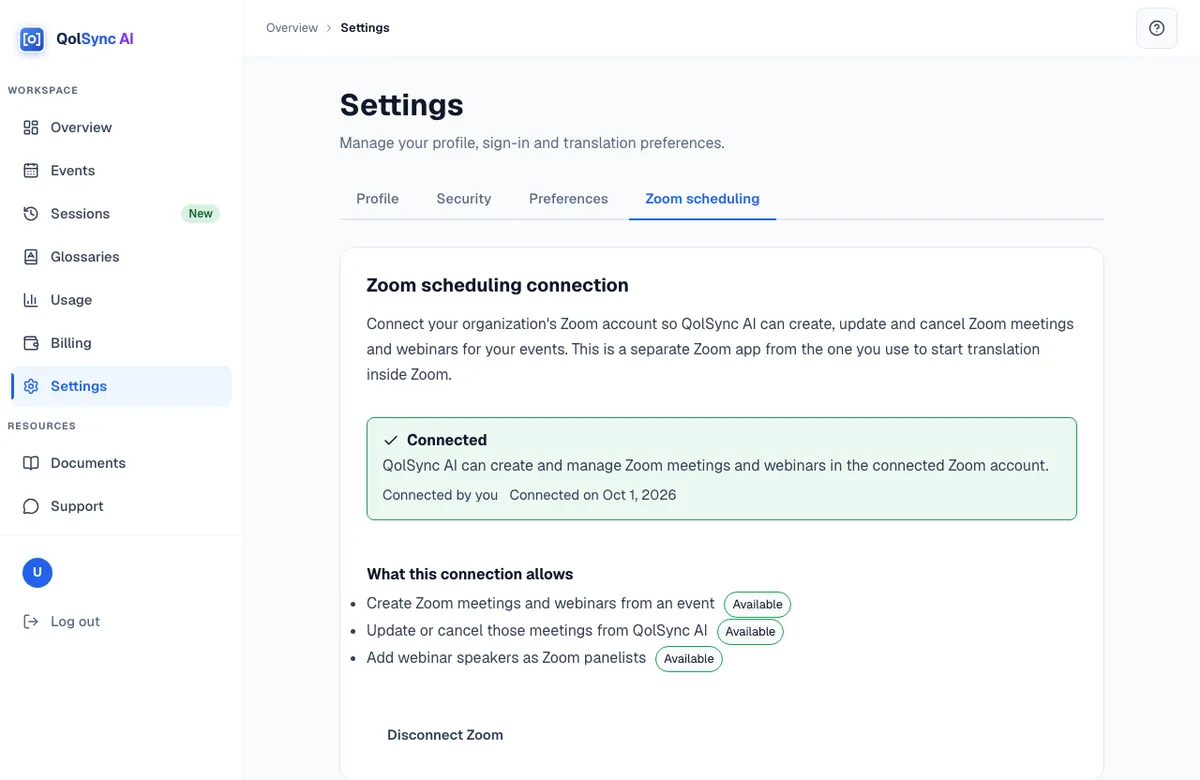
- Go to Settings > Zoom scheduling and select “Connect Zoom”.
- Sign in to Zoom as an account admin (Owner or Admin) and select “Allow”.
- Back in QolSync AI, check the Zoom account shown and select “Connect this account”.
One QolSync AI organization connects one Zoom account, and a Zoom account can be connected to only one organization.
Use it
- Create a new Zoom meeting or webinar from the event form and choose a host. Hosts without a webinar license are shown but cannot host webinars.
- Or paste an existing Zoom link. If the meeting belongs to the connected account, it is linked automatically.
- Title, start time, duration and time zone stay in sync both ways. A later change wins, and a change made in Zoom shows “Changed in Zoom”.
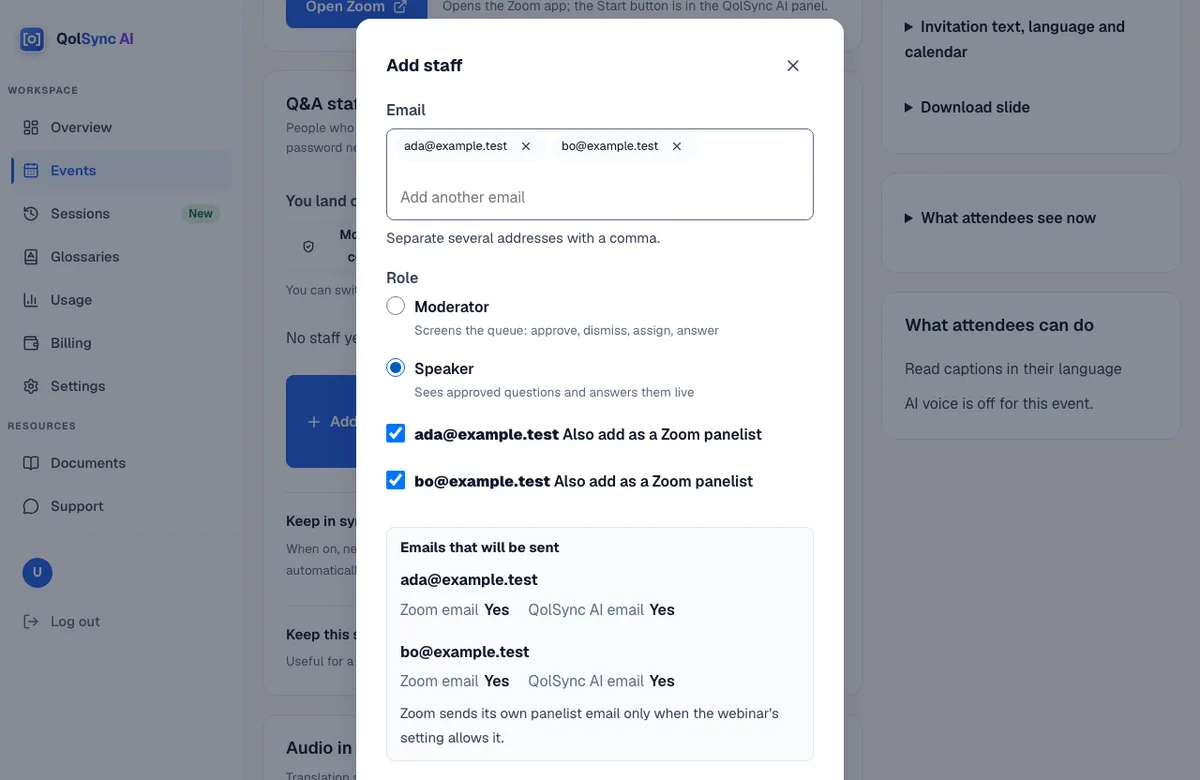
- Webinar speakers can also be registered as Zoom panelists. This is checked by default and confirmed per person, and the preview shows which invitation emails Zoom and QolSync AI will send.
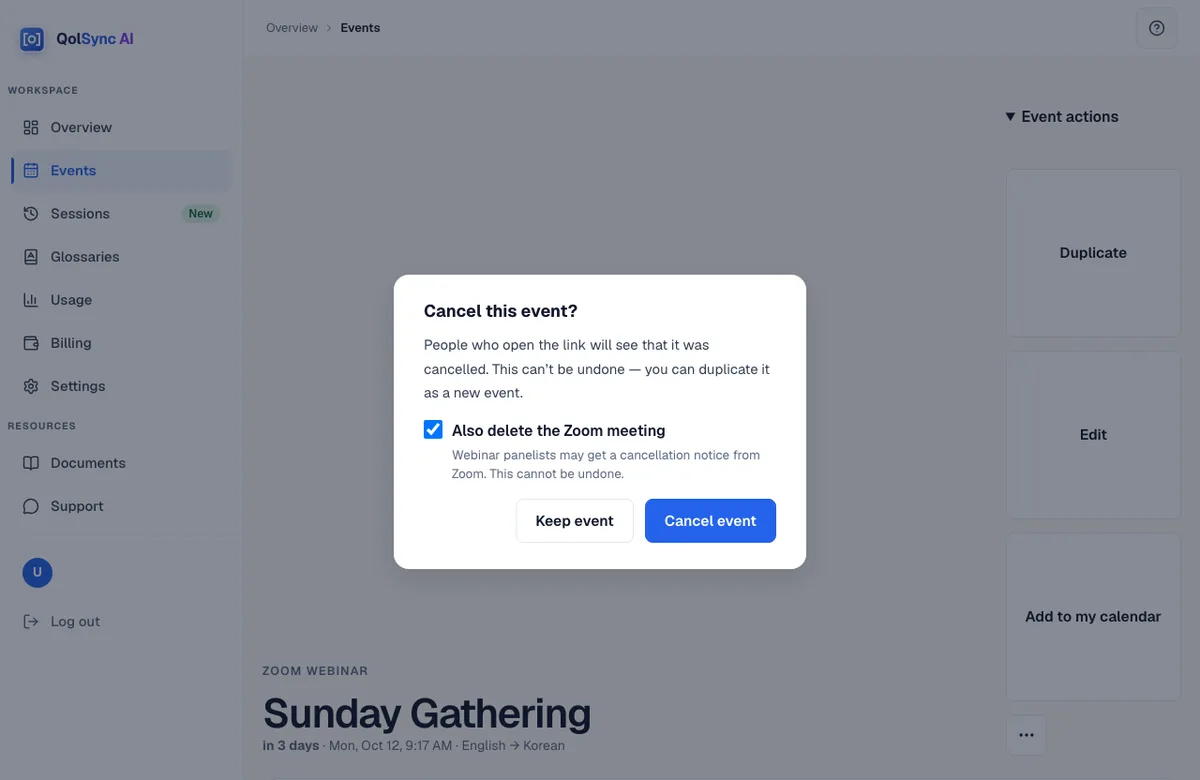
- When you cancel an event, “Also delete the Zoom meeting” is checked by default for meetings QolSync AI created and unchecked for ones you linked. If Zoom cannot delete it, the event stays cancelled and you can retry.
Test it step by step
Follow these steps in order. Each one says what you should see when it works.
Connect your Zoom account
Go to Settings > Zoom scheduling and select “Connect Zoom”. Sign in to Zoom as the account admin and select “Allow”. Back in QolSync AI, select “Connect this account”.
You should see “Zoom is connected.” and the status “Connected”.
Create a meeting for another host
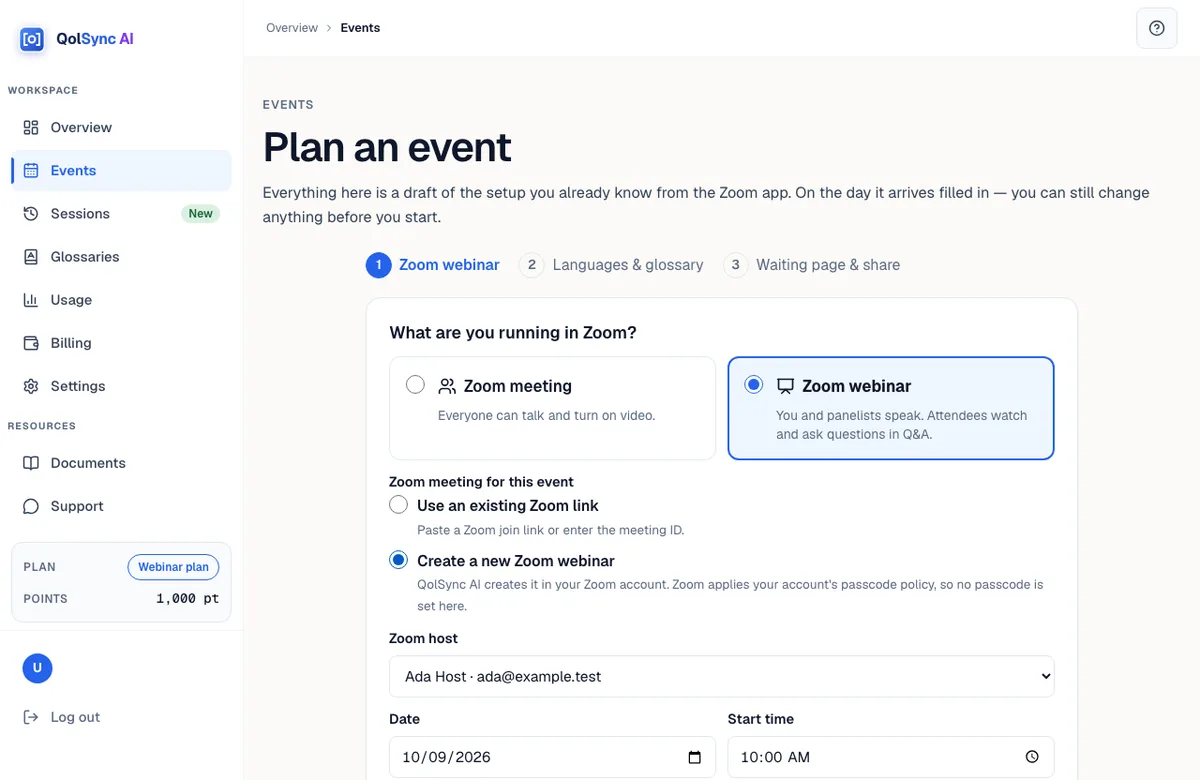
Go to Events > Plan an event. Under “Zoom meeting for this event”, choose “Create a new Zoom meeting”, pick a different user as “Zoom host”, set a future date and time, and select “Save event”.
You should see “Created in Zoom by QolSync AI” on the event, and the meeting in that host's Zoom account.
Change it in Zoom
In Zoom, change the meeting's start time.
You should see Within a minute, the event shows the new time and “Changed in Zoom”.
Change it in QolSync AI
Edit the event's title and save it.
You should see The new title on the Zoom meeting.
Create a webinar and add panelists
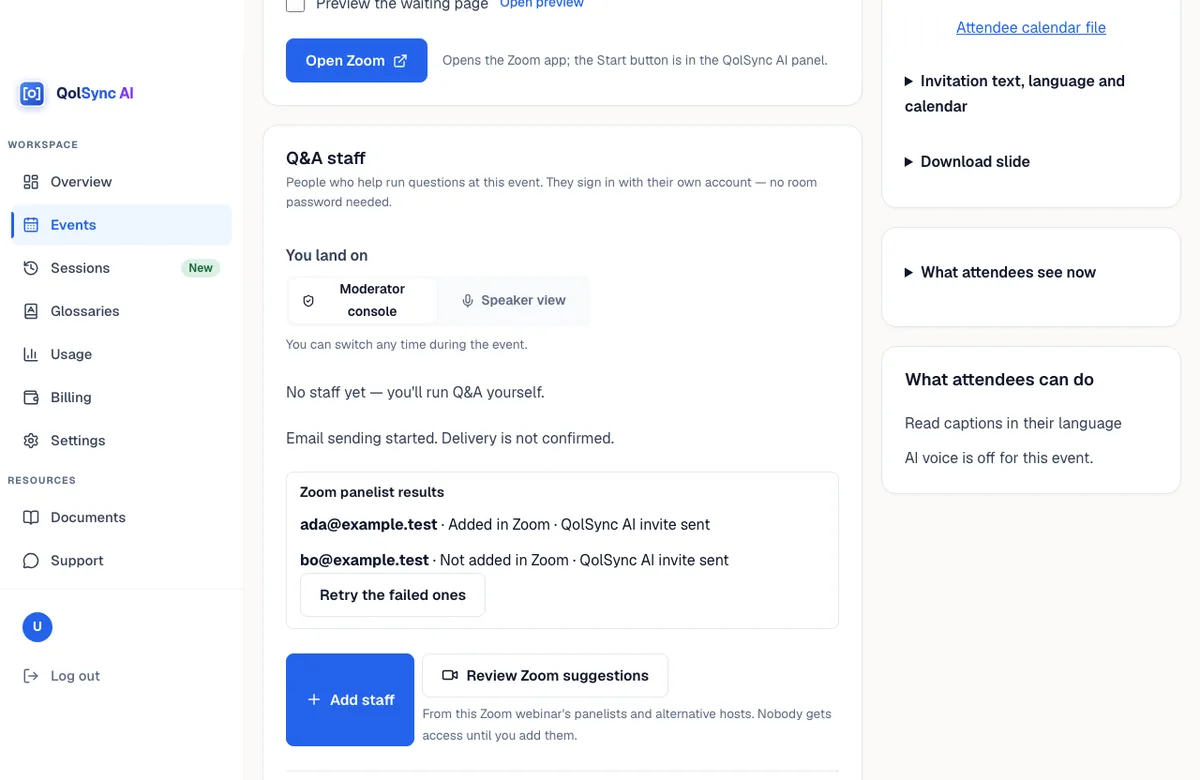
Plan another event with “Create a new Zoom webinar” and a host with a webinar license. In the event's Q&A staff, select “Add staff”, add speakers and keep “Also add as a Zoom panelist” checked.
You should see Before saving, “Emails that will be sent” lists each person. After saving, “Zoom panelist results” shows “Added in Zoom” for each one.
Cancel the event
Open the meeting's event, select “Cancel event”, keep “Also delete the Zoom meeting” checked and confirm.
You should see The event is cancelled and the meeting is gone from Zoom.
Remove the app from Zoom
In the Zoom App Marketplace, go to Manage > Added Apps > QolSync AI Scheduling > Remove.
You should see “Removed from Zoom” in Settings. Events keep their Zoom link, and the QolSync AI translation app keeps working.
Troubleshooting
Settings says “Not included in your plan”.
Zoom scheduling comes with the Webinar 100, Webinar 300 and Unlimited plans. On other plans you can still paste an existing Zoom link into an event.
“This Zoom account is already connected to another organization.”
A Zoom account can be connected to one organization. Disconnect it in that organization first, or remove the app in Zoom, then connect again.
A host shows “no webinar license”.
That user can host meetings but not webinars. Choose another host, or add a webinar license to the user in Zoom.
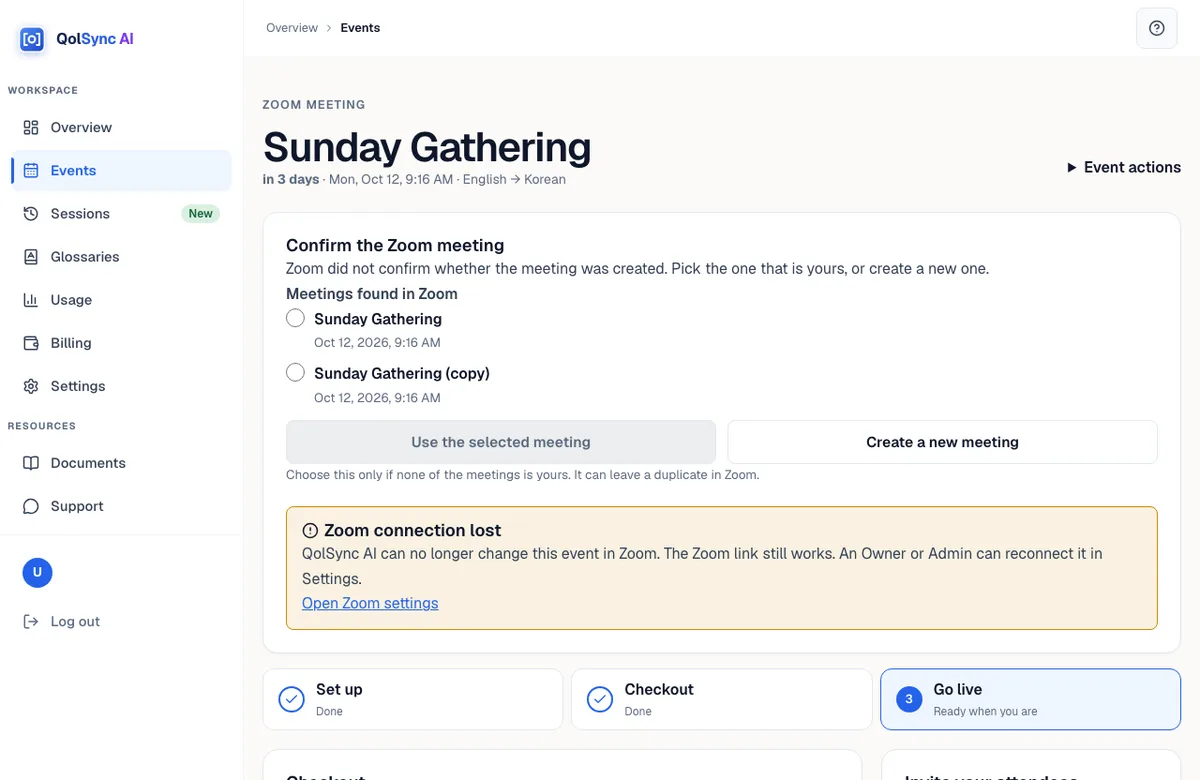
The event asks you to confirm the Zoom meeting.
Zoom did not confirm whether the meeting was created. QolSync AI checks again after 1, 5 and 15 minutes and links it when exactly one meeting matches. Otherwise, pick the meeting that is yours, or create a new one.
A change made in Zoom has not appeared.
Changes usually arrive within a minute. Reload the event. If it shows “Zoom connection lost”, an Owner or Admin can reconnect in Settings > Zoom scheduling.
“This confirmation expired.”
Select “Connect Zoom” again and confirm the account when you come back from Zoom.
Remove the app
- In QolSync AI: Settings > Zoom scheduling > Disconnect Zoom.
- In the Zoom App Marketplace: Manage > Added Apps > QolSync AI Scheduling > Remove.
What happens
- OAuth tokens are revoked immediately.
- Events stay, with their Zoom meeting number and join link.
- QolSync AI stops creating or changing Zoom meetings.
- Zoom account and host identifiers are deleted 7 days later.
- Reconnecting the same account within 7 days restores the connection.
Data we handle
- The host list is read live from Zoom and never stored.
- Stored: the meeting or webinar ID, join link, host and account IDs, and encrypted tokens.
- Panelist join links and meeting passcodes are never stored.