Before you start
- Use the current Zoom desktop client and a Zoom account allowed to install apps.
- Hosts sign in to QolSync AI. Zoom reviewers should use the application credentials supplied privately in the review Reply.
- New users may create a Free Trial account. Reviewers do not need a pre-created Free Trial account.
- Meeting participants and webinar attendees do not need a QolSync AI login.
- Webinar testing requires a Zoom account licensed to host webinars and a separate attendee. QolSync AI reviewer credentials do not provide a Zoom webinar license.
Install QolSync AI
- Open the QolSync AI listing or the review installation link in the Zoom App Marketplace.
- Select Add and review the Zoom permissions requested for your test scenario.
- After authorization, return to the Zoom desktop client and start a Zoom meeting or webinar as host. In its toolbar, open Apps and select QolSync AI.
Sign in and authorize Zoom
- Open QolSync AI inside the active host meeting or webinar. If already signed in through Zoom, select Switch, then Sign in with email. Otherwise, select Sign in, then Sign in with email when the sign-in choices appear.
- Enter one of the QolSync AI reviewer accounts supplied privately in the Zoom review Reply.
- If Zoom displays an authorization page, approve the permissions for the scenario you are testing.
- Confirm the signed-in email and plan. Select Switch to test another reviewer account.
Sign in inside the Zoom app for this host test; opening a standalone browser login does not establish the meeting or webinar context. The QolSync AI credentials are application credentials. Never enter a Zoom password, Zoom client secret, or administrator token in the QolSync email form.
Start a translated meeting
Screen examples · Illustrations based on the app interface, not live screenshots. Shown in English; layout and available options vary by window size and plan.
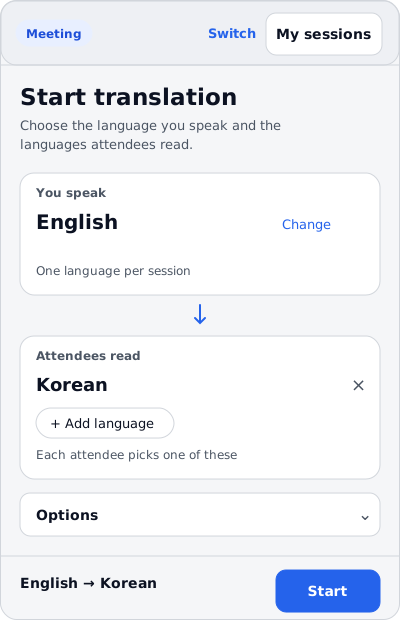
Choose languages, then start
Open the app inside your host meeting. Select the spoken and attendee languages before starting the interpreter.
View full size: meeting setup example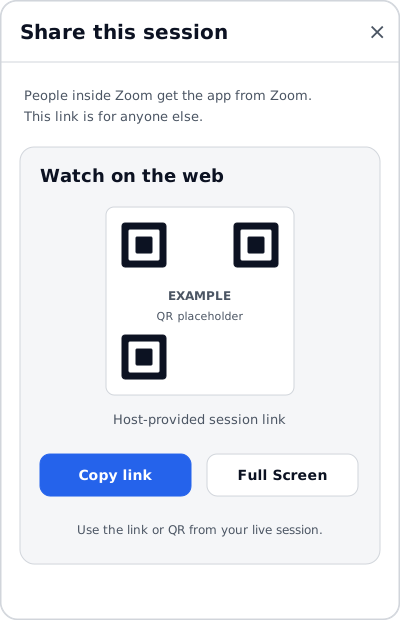
Share the live translation
After translation starts, open Share. Use the link or QR from your live session; the example QR shown here is not scannable.
View full size: meeting share example- Start or join a Zoom meeting as its host or co-host, then open QolSync AI from Apps.
- Choose your spoken language under You speak and one or more target languages under Attendees read.
- Review Options and select Start (Start AI Interpreter in a wider window).
- Wait for the interpreter to join, speak normally, and confirm translated text appears for the selected audience language.
- Use the on-screen stop control before ending the meeting.
Start a translated webinar
Screen examples · Illustrations, not live screenshots. Start inside a Zoom webinar as host. Attendee sharing requires a plan with Live Broadcast.
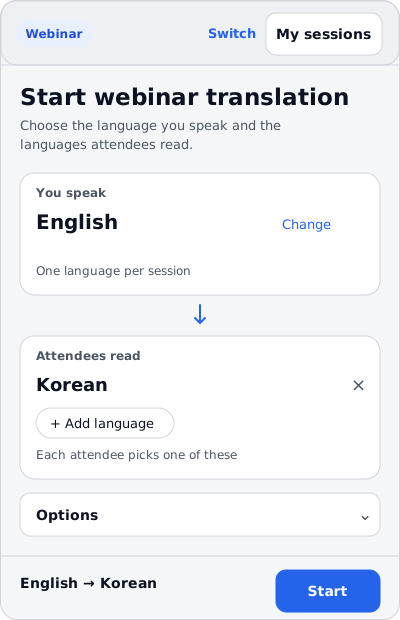
Set up your webinar
Choose languages and review Options on one screen. Complete any password or stay-in-webinar prompts before starting.
View full size: webinar setup example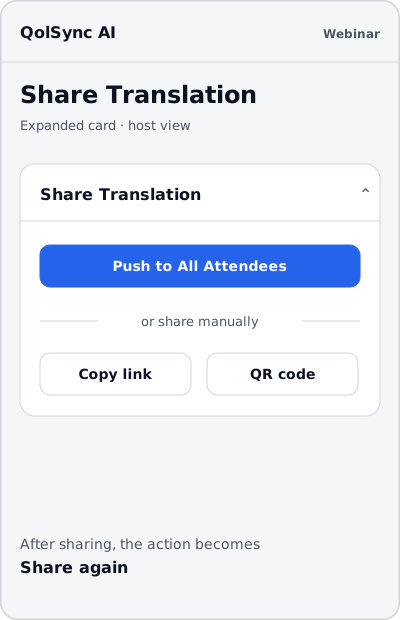
Invite attendees to follow
Once the session is ready, expand Share Translation. Push to All Attendees, or use Copy link or QR code to share manually.
View full size: webinar share example- Start a Zoom webinar as its host and open QolSync AI.
- On the setup screen, choose You speak and Attendees read. Expand Options to review Translation, Q&A, and About this webinar.
- Provide the webinar password if requested (or confirm that none is required), and confirm that you will stay in the webinar when prompted.
- Select Start (Start AI Interpreter in a wider window) and wait until the dashboard reports that the session is ready.
- With a plan that includes Live Broadcast, expand Share Translation, then select Push to All Attendees. If already shared, the control reads Share again. Attendees can receive translations without signing in to QolSync AI.
Join as a participant or attendee
Neither path needs a QolSync AI account. Join the meeting or webinar after the host has started the interpreter.
In Zoom (invitation)
- In a meeting, the host leaves Invite participants automatically on in the setup options — it is on by default. When the interpreter starts, the app attempts to invite participants through Zoom.
- In a webinar, the host expands Share Translation on the Dashboard once the session is ready and selects Push to All Attendees.
- Accept the Zoom invitation, choose a target language from the ones the host selected, and confirm live translated text appears.
By link or QR code
- In a meeting, the host selects Share; the Share this session sheet carries Watch on the web — a QR code and Copy link.
- In a webinar, the host selects or share manually in the same Share Translation card, and the Dashboard carries the same link and QR code.
- The link starts with
https://app.qolsync.ai/external?sessionId=<meeting number>and may include additional session or access parameters. Use the complete host-provided link or QR code, enter the session password if prompted, choose a target language, and confirm live translated text appears. No sign-in is required.
If the in-Zoom invitation does not reach a participant — Zoom does not show it on every client, and webinar attendees often receive nothing — use the link. It is the supported path, not a failure.
Audience Q&A (Preview) has its own anonymous link, which the host shares with Share Q&A link; it opens the attendee page on its Q&A tab. Each participant picks their own language, so different participants can read different languages in the same session.
Q&A speaker suggestions
For webinar staff testing when enabled, open the planned Zoom webinar's event page on the QolSync AI website using the host's linked account and a Q&A-enabled plan. Under Q&A staff, select Review Zoom suggestions. Panelists are suggested as speakers. Reviewing suggestions alone grants no access: the host selects whom to add, or explicitly enables Keep in sync with Zoom for automatic synchronization. Q&A speakers and moderators sign in with their own accounts; this is separate from anonymous attendee access.
Repeat with the panelist permission declined. Expect a reconnect/permission message instead of panelist suggestions; a failed panelist read must not remove existing panelist staff. Manual invitation by email remains available. If panelist suggestions are not enabled in the deployed version, only alternative-host suggestions are shown; that does not verify the panelist-permission scenario.
Plans used for review
| Plan | Reviewer use |
|---|---|
| Free Trial | Create a new account and follow the included trial experience. |
| Meeting | Verify the standard translated-meeting host flow. |
| Meeting Pro | Verify the translated-meeting flow with the account's expanded meeting features. |
| Webinar | Verify webinar setup, attendee sharing, and enabled webinar features. |
Optional Zoom permissions
QolSync AI keeps meeting and webinar permissions optional so reviewers and customers can authorize only the surfaces they use.
Required for every authorization
marketplace:read:list_user_entitlements— reads the QolSync AI seat assigned by the Zoom account administrator.user:read:zak— required by Zoom for the enabled Meeting SDK capability.user:read:user— completes the required Zoom identity lookup and QolSync AI account linking.
Choose for the scenario being tested
meeting:read:meetingandmeeting:read:local_recording_token— translated meetings.webinar:read:webinarandwebinar:read:local_recording_token— translated webinars.user:read:token— supports the translation bot's on-behalf-of token path when enabled.zoomapp:inmeetingandzoomapp:inwebinar— opens the app inside the corresponding Zoom surface.
The optional webinar:read:list_panelists permission supports Q&A speaker suggestions from the host's webinar panelists when that integration is enabled. It does not itself grant a Q&A staff role. Test this permission both granted and declined using the Q&A staff steps above.
To test another set, remove and add the app again, then approve only the optional permissions for that scenario. Test all optional permissions, required permissions only, meeting permissions only, and webinar permissions only. A visible setup screen does not prove that the required Zoom permissions were granted. Missing permissions can prevent the corresponding Zoom API operation or interpreter start; verify the result in each scenario.
Remove QolSync AI and data handling
- Open the Zoom App Marketplace, select Manage, then Added Apps.
- Choose QolSync AI and select Remove.
On deauthorization, QolSync AI removes stored Zoom tokens and the Zoom user license assignment, and reverses a plan only when Zoom granted it. User-created transcripts, Q&A, Meeting AI content, and glossaries follow the Privacy Policy and account-deletion process.
Troubleshooting and support
- If the wrong account or plan is shown, select Switch and sign in again.
- If Zoom permissions changed, remove and add the app again to repeat authorization.
- If authorization fails, start again from the Marketplace installation link. Refreshing an old callback cannot reuse its one-time code. Opening the connection-complete page directly does not verify successful authorization.
- If translation does not start, confirm the host selected spoken and audience languages and that the relevant meeting or webinar permissions were approved.
For additional help, visit QolSync support or email support@qolsync.ai.